Friday, August 31, 2007

HerFabLife.com


HerFabLife.com is the latest social bookmarking community for young urban hip and trendy women who are interested in the latest fashion styles, the newest restaurant, bar, spa, salon, retail store openings. It's a site where many young people meet and exchange their latest finds of restaurants, concerts, events, fashion styles, shops, etc etc. Name it and they have it. It's concept comes with a social networking style so it's easy to communicate with members and exchange ideas, places, get to know new beauty shops or spas etc, includes tags feature for easy sorting. In my point of view it's an excellent place to hangout for women who are trendy and stylish but yet my consumption can be wrong, so you also can take a look inside it and evaluate by yourself. The HerFabLife.com is the perfect place for women from different backgrounds from all over the world to share their experiences about the latest lifestyle trends. They don't have to be a guru; they can just come to the HerFabLife.com to check out cool new trends and products. People who use the HerFabLife.com are: Readers, Shoppers, Bloggers, Retailers/Business Owners. They are in search of the freshest and most interesting new products, brands and designers from around the world. Fashion and lifestyle is created between people, and so you can network, contribute content to the site, voice your opinions and vote on content you like or dislike. They also provide you with Your Personal Lifestyle Guide and also with Your fav lifestyle guide. This is the site that allows women to give their opinions and vote the content that their like and dislike in the website, they are allows member to contribute content as well. You can post your latest finds and thus be a guide to others, or you can sit down and see what others have come up with.

You now know everything about this cool website, so what is holding you back, Get a FabLife Just Now!!

Thursday, August 30, 2007

Kids And Media (TV, Internet)


It's something every new parent grapples with: How much TV is too much TV?

Researchers at the University of Washington have found really young kids seem to be watching a lot of it. And while they're not sure how bad that is for them, they know it's not entirely good. Here's what their survey turned up:
  • 90 percent of children under the age of 2 watch TV and videos regularly
  • 40 percent of infants under 3 months are, too (Three months?)
  • 29 percent of parents whose babies are watching TV and DVDs believe the educational programming is good for their brain stimulation, though no research has proven this

Sure, every parent of a baby and young toddler needs a break, but check out the full story in the Seattle Post-Intelligencer to help you decide how much is okay. Remember that the American Academy of Pediatrics recommends no television for children younger than 2, and only one to two hours a day of quality programming for older children.

Resist the temptation to put TVs in children's bedrooms, too. The academy says one of out of every five children age 2 or younger has a TV in his bedroom. There's another reason this may not be a good thing — an increased risk of obesity for preschoolers who have TVs in their bedrooms.

So, truthfully, do you think babies should watch any TV or videos? Please share how you manage the balance of educational videos, TV, and good old-fashioned play with your little ones.

How To (Realistically) Set TV, Internet Limits for Kids

Tip: No TV, Internet, or video games until homework is finished.
Reality: This one is the easiest one to follow in our house because it's pretty clear cut. (No doubt it's harder to ensure if kids are home alone after school.) Once homework is finished, then we can talk about computer time and TV. But homework includes reading, and we've been slacking on this one. 10-years-old does not read as much as her older sibs, so we've added reading time to the before-TV-Internet list again.

Tip: No instant messaging or emailing during homework time.
Reality: This one is harder to stick to as kids get older. Still, it's worth a try. That's why it's important to keep computers in central areas. But this, too, needn't be a hard and fast rule for teens. The reality is once they move to college and into the workforce, they'll be juggling multiple instant messages while doing work and surfing the web. So help them make good decisions about what work needs their undivided attention and what work can be completed with some interruptions.

Tip: No computers in bedrooms.
Reality: As more teens start to use laptops and more homes integrate wireless Internet access, there will be times when kids have computers in bedrooms. But laptops are portable, so you can make sure homework is done in a more central place in the home and that laptops are turned off and out of bedrooms at bedtime.

Tip: Set time limits on TV and computer time.
Reality: Easier said than done and not always terribly realistic because life doesn't move in neat segments of time. Some days this will work, others it won't. Set guidelines and keep talking (and showing) your kids why it's important to read newspapers and magazines, and spend time outside. Alternatively, You can do crossword puzzles together.

That's just a few. Feel free to add your true-life approach to striking the right media balance at home for you and your kids.

Online Private Photo Sharing


A friend of mine, a new mom who is very tech savvy and comfortable socializing and sharing info on the web, recently raised a good question for young parents. Like lots of first-time parents, she put images and videos of her child with her name on the web for friends and family to see. She used Flickr and Yahoo! Video, which makes it easy to send links that people can click on and be brought immediately to a public photo or video gallery.

But when she did a search on her daughter's name, she was surprised to immediately find links to the images. It made her stop and think about how they handle their child's images on the web before she is old enough to have any say in how she is presented online. For now, she has taken the most prominent links down, and she and her husband have decided not to use their daughter's full name on anything they post in the future. Friends of theirs take an even more cautious stance: they will not put any images of their children on the web before they are old enough to say whether they want them there or not.

Either way, it's an interesting dilemma for parents who have come of age at ease with sharing images and writings about themselves on MySpace, Facebook, YouTube, and other social-networking sites. But when it comes to children, parents need to weigh their kids' right to privacy with the desire to share their joy with the world.

When Richard M. Smith, an Internet security consultant based in Boston, searched on his grandson's name, he was surprised to come upon a page of Flickr photos of the baby set up by his son-in-law. "Seems like a problem," he wrote in an email message. Because Smith is concerned about safety as well as privacy, he notes that putting full names of family members online is not a good idea, especially when there are tools that allow people to search on names of adults and come up with home addresses.

If you've set up a family web site, Smith notes that you can use a ROBOTS.TXT file to tell search engines to go away so the site does not show up on search index pages.

The simpler solution, he said, is to choose web-based photo-sharing options that allow you to keep the sharing between family and friends and not in the public domain. With that in mind, here are a few ways to share in a less public way:

Privacy settings: Flickr now has a "hide your photos from public searches" feature in the "my account" section of the site. You can also change privacy settings to restrict those who view your photos to friends and/or family. If you do this, you'll need to invite some friends and family to sign up on Flickr, which may take a little explaining for some less tech-savvy family members. (Note: You can not make uploaded videos to Yahoo! Video private.)

Private photo and video sharing sharing: All the major photo web sites have sharing features, though many require the viewers to register with the sites to see the photos. Shutterfly does not, which is one of the reasons why I like it. To share videos with family members and friends, try Motionbox, which has a private setting, and One True Media, which allows you to share videos on a personal TiVo channel.

Family social networking sites: Some charge subscriptions, some are free. A few free ones worth checking out are Famoodle, FamilyRoutes, and Kincafe. For a scrapbooking approach, try Smilebox.

Those are a few ideas for sharing photos and videos of your family with the people you want to see them and not necessarily anyone who finds them on the web. If this is something you've given some thought to, too, please share in the comments below how you share images of your little ones with an eye toward privacy and safety.

Wednesday, August 29, 2007

JustSayHi.com

Online Dating is very common today in society, some people even find their future partners online. In the recent 5 years down the line, the internet has had a boom of dating sites. There are so many dating sites but majority of them require you to pay a fee after you register so you can send messages to other users but this new free online dating service I am talking about today is called JustSayHi.com and is 100% free with no credit card needed ever. You won't find many other free dating sites which can be compared to this feature. JustSayHi.com is truly wanting to help you find someone special and not solely wrapped up in making money off your wallet like some other sites out there. With life getting more and more busy with growing complexity in workplace each day, it can be very difficult for people to get out in open and meet people. Especially if one is looking for someone special, and looking to start a relationship or begin dating. The site is laid out very nicely, making it extremely user-friendly and easy to navigate. The response time and the content is very impressing. I like this more than any other site, because nobody wants to sit and search around for hours for a profile with my preference. This site makes it easy to join and begin searching for other singles.
The internet has been accepted for quite sometime and everybody is taking help of internet for common place for dating, and numerically the dating pool includes billions of people. The fact that this site is free does give them a winning edge over their competitors and their traffic flow is pretty high. Apart from the similar features which we see in other sites like making a profile, uploading a photo and sending messages to other user, JustSayHi also has a community forum and you can also rate participants after a date. Now it is really possible to meet thousands of fun loving, attractive, men and women in your area on a totally FREE dating site. What are you waiting for? Join and feel the difference and start going out on dates!!

CriticsRant.com

Are you a movie buff? Are you one of them who just have to watch movies on first day first show? I know I am one because I’m always checking the newspaper for the newest movies coming out. However with movie ticket prices going higher every week, you might want to be sure of what you going to see would be worth the ticket before you purchase. CriticsRant is a website that gives free reviews of the various TV shows, video games and movies. The movie reviews give you a good idea of how good or bad a particular movie is as you have the benefit of reading both the review as well as the numerous comments on the reviewed movie left by your fellow CriticsRant users. CriticsRant.com is a new and witty website for movie reviews, TV shows and video games. Not only in CriticsRant.com you can give (or get) your honest, in-depth "rants" on movies, games and TV shows, but you can also win a DVD just for sharing your two penny, regardless if it's negative or positive in their daily DVD giveaway contest. Now that’s a real good deal, don't you think so?

Tuesday, August 28, 2007

MyFitnessPal.com

Hey are you overweight and still can not control yourself over food you eat? Or better, do u want to shred some of your calories quickly? Or are you seriously considering yourself to go on diet? Oh yes, now you got a choice and rather do not be seated on a chair all day thinking of how you going to do this. All you have to do is log in to My Fitness Pal and check out how to start on things to burn some calories easily. The site tells you about the nutritional contents of what you are eating, and consequently, how you can make better food choices. You can now keep a check on the amount of calories taken in by you with the help of a calorie counter.

MyFitnessPal.com provides all the help for natural weight loss. The site has a BMR Calculator which can give us an estimate of how many calories you'd burn if you were to do nothing but rest for 24 hours. It represents the minimum amount of energy needed to keep your body functioning, including breathing and keeping your heart beating.

This Wonderful site which i came across yesterday has more things to offer for free of cost. They also have BMI Calculator which help us find a healthy target weight range. BMI is a measure of body fat based on height and weight. Believe me these little tools along with many other useful tips really is helpful when it come to be fit. It is almost like you will be on a doctor's suggestion without spending single penny because the site is 100% free!! I was really intrigued by all this website had to offer, and I'm sure you will be as well. Take a look today and see what you think.

Monday, August 27, 2007

Trustsource.org

If you are having confusion about buying a product from website or not sure of how much it is going to help you with so much money spent, then it is time you can be now assured of seeing what other people have to say about the particular product you are interested to buy. You can now see products that are offered on the web if actually they worked for people who have bought them and then after reading their reviews u can easily make up your mind on whether to stick on your decision or just try the product and see a difference. Thanks to trustsource.org now you can find out by reading the reviews of people who have already encountered and tried with millions of product already. It is about time that you can actually rely upon people and their review for products they used without bothering about the advertiser's flashy catchup line and their new ways of promoting products.

Revolutionary products like Provillus, which acts against hair loss by aggressively seeding the scalp to allow for new hair growth. It also gives the scalp the correct nutrition to bring damaged hair follicles back to health. Hair gets healthy and as a result hair fall lessens and it does help in stopping pre-mature greying of your hair. As hair fall is one of the rising problems, many people actually tried the product. Since then this product has received a five star rating by the people who have used it and are fully satisfied.

For whatever you intend to use for yourself, this site is just as helpful. Once you are in the review section where people write their experience with the product you will get a clear answer about your doubts in mind if you really want to buy what you thought of. Let's consider the range of cellulite cream that Trust Source offers. Like all the products these are tested and then reviewed by consumers. Many Cellulite creams are getting introduced in market so it becomes difficult for the consumers to decide on which brand to go for or which one would be without any side effects. Trust source lets users to review on the products under each category and then ranks the product according to users good/bad review making it easier for customers to decide.

Another amazing range of quality star products are those designed to help relieve the unpleasant and intolerable side effects of the menopause, especially the hot flashes that so many women find uncomfortable. From homeopathic drug to herbal medicine, these products along with everything else at Trust Source, are tested by the company itself to ensure that they do what they claim. It has been clinically proven that products that are best chosen by Trust Source are to be effective in the relief of Menopausal symptoms. However, members of the public are then invited to give their opinion. As far as this products are concerned, it's thumbs up all the way.

Finally to sum up, if ever you want to check if a certain product that you're thinking of buying really comes highly recommended or not, log in and check it out first in Trust Source. For now, you can start looking at TrustSource.org, you will never ever regret! Trust source will never push you for wrong products and I am sure you will get the very best of your health with the money you spend on your products.

Gizmo Updates

CD Destroyer:

Ready to purge all those CDs loaded with credit card numbers, personal documents, and top-secret files? Here's a compact, USB-powered contraption that'll make mincemeat of your discs in mere seconds.
Sniffed out by Gizmodo, the $29 CD Destroyer will take any CD or DVD and—with help from a trio of carbon-steel teeth—carve a series of cool, elliptical scratches on its surface, effectively turning your disc into a pretty-looking coaster. According to the specs, the CD Destroyer can carry out its destructive duties within about five seconds—good news for anyone with a stack of incriminating discs to trash. The Destroyer comes with a USB cable for power, and the manufacturer has thoughtfully thrown in a leather carry case for paranoid road warriors.

iPhone Hacked:

A new (and unauthorized, of course) piece of software developed by a team of hackers will let you use the iPhone with any SIM, not just AT&T's, according to Engadget.The blog reports that the coders at iPhoneSIMfree.com called Engadget editors and walked them through the unlocking process, which requires a software app that the team has yet to release on the Web. The Engadget bloggers say the installation took just a few minutes, and that once competed, they were able to make calls on their test iPhone with a T-Mobile SIM card. Practically every iPhone feature was still working, according to Engadget, save Visual Voicemail. Sure, it may all sound a little fishy, but Engadget has a bevy of screenshots and videos backing up the story.So, how can you unlock your own iPhone, you ask? First of all, the hackers behind iPhoneSIMfree.com haven't released their code yet, and it's not clear when they plan on doing so. Also, even if you do get your hands on the unlocking software, you'll almost certainly void your warranty in the process, so do it at your own risk. Still, if you've been chomping at the bit to get an iPhone but don't want to sign a contract with AT&T, your lucky day may be fast approaching.

PS3 Adds DVR features:

Looks like European PlayStation 3 owners will soon be able to watch and record TV on their consoles, thanks to a new DVR add-on coming in 2008. But what about those of us stuck in the U.S.?Sony Europe announced today that the new device, dubbed PlayTV, will be available early next year in the UK, France, Italy, Germany, and Spain. According to Wired News, Sony reps in the U.S. say they are "investigating" the possibility of a PlayTV for the States, but there's no official launch date—or even confirmation that PlayTV will come here at all. Bummer.Anyway, PlayTV will come with a pair of DVB-T (the digital broadcast standard in Europe) tuners, allowing you to watch one show while recording another, and an electronic programming grid will let you select individual shows or an entire series for future recording. You'll be able to watch and record shows in HD (up to 1080p), while PSP owners can stream shows to their handhelds over Wi-Fi or transfer them via USB for later viewing—nice. Of course, Sony's announcement begs the question: what ever happened to talk of IPTV functionality on the Xbox 360? There are whispers that 360 TV features may be coming this fall, but nothing official. Stay tuned.

Zonbu- Green Colour PC

PCs have become a bit ho-hum lately. But I'm predicting that this is the year we're going to see new designs and innovation in the PC world. As a matter of fact, at the recent Computex (a very large computer show in Taipei) there were some extraordinary ultra slim PCs on display, measuring about seven inches in width and weighing as little as two pounds. PCs you can balance in the palm of your hand. I wrote about some of these new ultra mobile PCs recently.

But one of the most unique designs I've seen is a completely different sort of PC entirely, and it doesn't cost thousands of dollars. It's a $99 PC called Zonbu. It's not a notebook nor a traditional desktop. It's the size of a small cigar box, but it combines a "green PC" design with a Linux OS and a web based service. In many ways, Zonbu is the sensible, affordable, and future-thinking way to go.

According to Gregoire Gentil, one of Zonbu's founders, the idea was to bring some of the benefits of the workplace environment, with its managed PCs, to the home. The Zonbu business model is more like a cell phone carrier's than a PC vendor's. You sign up with Zonbu; it provides both the service and hardware.

To get started, you attach a monitor, keyboard, mouse, and an Ethernet connection to the Zonbu box. (A wireless version will be available at a later date.) The box boots up immediately and sends you to the Zonbu site. In addition to the $99 box, you'll pay $12.95 a month for 100GB of storage on the Zonbu site. Your monthly fee also guarantees updates to software and drivers.

Inside the Zonbu there are no moving parts (hence no fan), so the unit uses very little electricity. Without a hard drive or fan, it's also blissfully quiet. Instead of a traditional hard drive you get a 4GB compact flash drive that houses the applications. Running the Linux operating system, Zonbu comes loaded with some of the most popular open source applications. Applications include a web browser with Google, games, a photo organizer, media player, a full Office suite (that can read and write to MS Office file formats), and even an iTunes-like application. It runs Skype and a universal instant messenger. Zonbu claims the software on the machine is a $2,000 value. For those of you that haven't used some of the open source applications, they feel very much like the Windows or Mac apps that you might be used to. Zonbu's software choices, for the most part, are best of breed in the open source world: Open Office.org and Mozilla Firefox, for example.

Zonbu's creators claim that the box is carbon emission-neutral because of its low power consumption. And, because of its tiny size, they say they are minimizing e-waste, both in the production and disposal of the unit. Finally, the Zonbu manufacturing process complies with the standard of the European RoHS Directive to minimize the use of harmful substances in the manufacturing process.

Beginning in July, customers can buy Zonbu on the web site and participate in an early customer program. If you're thinking that Zonbu is perfection, think again. There is a downside to being different. If there are certain Windows or Mac applications you need to use (say, Photoshop for instance) you're out of luck. A Linux machine is not going to run most of the games your kids want to play, either. Synching up your BlackBerry and other peripherals is also not an easy thing to do. At this time there's no support for Bluetooth, webcams, or scanners either. And if the company doesn't make it, well, you've got a little box of nothing, since so much of the experience is housed on their servers. And remember that by the time you've spent $13 a month on service, plus your $99, you could have gotten a pretty spiffy PC.

My vote would be to think seriously about a machine like this as a second or third household machine for surfing the Internet, office applications and simple media tasks. It's blissfully easy to set up and manage, lightweight, quiet, well stocked with software, backup and management included, and it's "green." Not perfect, but it's sure a welcome addition to the world of me-too computers.

Saturday, August 25, 2007

Nasty Spyware


Not even James Bond could bring any glamour to the nastiness of spyware, which is a software program that installs itself (without your knowledge) on your computer. After it's installed, the software collects information about you, and when you're online it sends the information to the spyware program's owner. Most spyware fits into either of two categories:

  • Surveillance spyware
  • Advertising spyware
How Spyware works
Surveillance spyware scans documents on your computer and can capture your keystrokes as you type. It can spy on forms you're filling out on a Web site (such as your login password or your credit card number) and the text you enter in a chat window. Government and detective agencies have been known to use this type of software, as have jealous spouses.

Advertising spyware is software that is installed when you're installing other software (usually software you download from the Internet) or that is installed in the background while you're visiting a Web site. It's common for advertising spyware to be included (without your being told) when you install software that's advertised as "free, if you don't mind seeing advertisements when you use it." One of the most pervasive distributors of spyware is software you download to take advantage of "peer to peer" file exchanges (for music and video). Advertising spyware logs information about your computer - and about you. The information includes passwords, your Web browsing habits, your online buying habits, and so on.

Both types of spyware can also install viruses and worms on your computer. Many of them change your browser settings (such as your home page), and your efforts to correct the changes are temporary; the spyware changes them again.

One of the annoying features of spyware is its connection to pop-up ads. Using the information it has collected about you, the spyware initiates pop-up ads whenever you connect to a Web site. The spyware software producer receives income whenever you respond to one of these pop-up ads, so the theory is "the more the better." After a while, using the Internet becomes almost impossible because of the barrage of pop-ups. Regardless of your Internet Explorer controls for your children, the pop-ups often contain pornography.

Spyware Removal:

The only way to remove spyware from your computer is to use software designed for that purpose. The following two programs are well regarded by computer professionals:


Thursday, August 23, 2007

Some Important Cell Phone term definition


Confused by the alphabet soup of cell phone acronyms? I don't blame you. Here's a cheat sheet that'll help you navigate the waters while your shopping for your next phone—or trying to get the most out of the handset you've got.Most of the confusion arises when it comes to the various types of cell phone networks. For example, when I ask my aunts and uncles which networks their phones work on, they'll usually tell me their carrier instead of whether they're using GSM or CDMA—and frankly, before I started writing about cell phones for a living, I didn't know the difference, either. So first, let's start with a quick overview of the two main standard for cell networks:

GSM: Short for Global System for Mobile Communications, GSM is the most widespread standard for cell phones networks in the world. If you're a jetsetter who likes keeping in touch during your far-flung travels, you should go with a GSM-enabled phone. The main distinction of a GSM phone is that it comes with a SIM (Subscriber Identity Module) card—a little plastic chip that, as its name implies, identifies your phone on the GSM network. If you take the SIM card out of your GSM phone and put it into another GSM handset, you'll be able to place and receive calls on the second phone using your own cell phone number. GSM phones are also capable of handling six-way conference calls.

CDMA: Short for Code Division Multiple Access, CDMA networks are much more prevalent in the U.S. than they are abroad, and while CDMA boasts many of the same features as GSM networks (including caller ID, call waiting, and text messaging), there are some key differences—namely, CDMA phones don't use SIM cards. Instead, your phone's identity and number are programmed into the handset by your carrier, and you can't easily switch numbers on CDMA phones as you can with SIM-equipped GSM phones. Also, CDMA phones can only handle three-way conference calls, versus six-way calls on GSM networks.

OK, so you've got your two main flavors of networks, but now I'm going to stir another variable into the mix: 3G. Here's the deal: GSM and CDMA are both considered second-generation, or 2G, networks (the first generation being AMPS, an analog network used mainly back in the 1980s). Unlike the old voice-only AMPS networks, digital GSM and CDMA networks can handle both voice and data calls, which means you can send text messages, surf the Web and get caller ID info. But data flows slowly over GSM and CDMA—think dial-up, only slower. Streaming video and music? Forget it.

That's where 3G, or third-generation networks, come in. These so-called 3G systems allow data to flow at speeds you'd expect from a home DSL modem or better—and at those speeds, you get features like streaming video and full-track music downloads. The main types of 3G networks include:

EV-DO: An add-on for CDMA networks, EV-DO (or Evolution-Data Optimized) delivers data speeds between 144Kbps to 2Mbps to CDMA cell phones, perfect for streaming video and music. Sprint offers EV-DO access through its Power Vision phones (which are typically a little pricier than standard models); on Verizon Wireless, look for the "V Cast" label.

UMTS and HSDPA: Both UMTS (Universal Mobile Telecommunications System) and HSDPA (High-Speed Downlink Packet Access) are upgrades to GSM networks, and like EV-DO, they provide DSL and cable-like data speed. The only difference between UMTS and HSDPA (besides the technical nitty-gritty, of course) is that HSDPA is even faster than UMTS; for that reason, HSDPA networks are often called 3.5G rather than just 3G.

Somewhere between 3G and 2G lies, naturally enough, 2.5G networks, which give you data speeds that are slightly faster than dial-up—no good for streaming video, but fine for messaging or mobile Web browsing. These networks include:

1xRTT: A variant of the CDMA standard, 1xRTT (or "1 times Radio Transmission Technology") gives you data speeds between 30Kbps and 90Kbps, a bit better than your typical 56Kbps dial-up modem. Most of the non-3G phones on Sprint and Verizon have 1xRTT capabilities.

GPRS and EDGE: The 2.5G flavors of GSM networks, GPRS (General Packet Radio Service) and EDGE (Enhanced Data Rates for GSM Evolution) also give you data in the 30Kbps to 90Kbps range, with EDGE running slightly faster than GPRS. Again, most of the non-3G phones on AT&T offer either GPRS or EDGE, while T-Mobile—which has yet to launch a 3G network—only does GPRS and EDGE.

Some other terms are:

xHTML: eXtensible HyperText Markup Language
A newer version of the HTML markup language (code) used to create Internet web pages. Unlike the older HTML, xHTML includes several core features designed specifically with mobile devices in mind. Special versions of xHTML - such as xHTML Basic and xHTML Mobile Profile - are designed specifically for mobile devices. xHTML also includes features that allow a website designed for a full PC to automatically display in a simplified version on a mobile device. xHTML also adheres to strict XML rules, which makes it much easier for devices with limited processing power (like phones) to understand and display quickly and consistently. xHTML is a core part of the WAP 2.0 standard, replacing the WML language that was used in WAP 1.x.While most new phones support xHTML, many older phones only support WML and/or HDML.

XML: eXtensible Markup Language
A standard that forms the basis for most modern markup languages. XML is an extremely flexible format that only defines "ground rules" for other languages that define a format for structured data designed to be interpreted by software on devices. XML by itself is not a data format.Examples of XML-based standards include xHTML, for creating web pages, RSS, for feeds of new information (such as news headlines), and SyncML, for managing personal data such as contacts, email, files, and events.

WML: Wireless Markup Language
An industry-standard markup language for creating tiny web sites optimized for phones.WML was a core feature of the WAP 1.x standard.WML is being phased out in favor of the newer xHTML standard, part of WAP 2.0.Older phones may only support WML sites.
WLL: Wireless Local Loop
Wireless service systems that compete with or substitute for local wireline phone service.

WAP: Wireless Application Protocol
A technology designed to allow efficient transmission of optimized Internet content to cell phones.

VOICE MAIL: A service provided by a phone network to store and manage voice messages for individual users. Like an answering machine, voice mail can handle a call when the person being called is unavailable, by playing a greeting message and recording a voice message from the caller. From a modern mobile phone, the voice mail system can usually be accessed by pressing and holding the "1" key, although some phones use a different key, or require dialing a code. Once connected to the system, voice messages can be retrieved and managed using a traditional phone menu interface. Many voice mail systems also offer advanced options such as different greetings for different times or dates, or fax management.

VOICE DIALING: This lets you speak a name to dial a number instead of entering a number manually or choosing it from the phone book.There are two types: speaker-dependent (recorded) and speaker-independent (recognition).With speaker-dependent, voice dial entries must be explicitly created by speaking and recording the name 1-3 times. The phone will only respond to recorded names, and usually only when spoken by the same person who recorded them. The maximum number of voice dial entries is usually limited to a fraction of the size of the whole phone book.With speaker-independent voice recognition, no recording is required. The name can be spoken by anyone, and the phone will automatically match the spoken name with the closest name entered in the phone book.Speaker-dependent is the most common type, especially on older phones. If the type isn't specified, it is usually speaker-dependent.

VGA: Video Graphics Array
A standard size/resolution for digital cameras, images (files), and displays. VGA size is 640 pixels wide by 480 pixels tall (or vice-versa in portrait orientation). VGA is larger than CIF, QCIF, and QVGA, but smaller than megapixel.

SVGA: Super Video Graphics Array
A standard size/resolution for images (files), and displays. SVGA size is 800 pixels wide by 600 pixels tall (or vice-versa in portrait orientation). SVGA is larger than CIF, QVGA, and VGA, but smaller than 1 megapixel.

SYLUS: A small pen-like instrument used to "write" on a touch-screen device. A stylus is often nothing more than a simple stick of plastic, except that its tip is specifically designed to not damage the screen. The stylus provides far more accuracy than could be achieved with a fingertip, and provides a familiar pen-like experience for inputting handwriting or drawings.

SOFT KEYS: Soft Keys are multi-function keys that use part of the display to identify their function at any moment. Because of this, they are usually located directly underneath the display.

QUAD BAND: Designates a GSM phone that supports all four major GSM frequency bands, making it compatible with all major GSM networks worldwide. The four bands include the 850 and 1900 MHz bands - used in the Americas - and 900 / 1800, used in most other parts of the world. Compared to a tri-band phone supporting the 900 / 1800 / 1900 bands, a quad-band phone adds support for GSM 850 for full coverage in the Americas. Compared to a tri-band phone supporting the 850 / 1800 / 1900 bands, a quad-band phone adds support for GSM 900 for full coverage in Europe and Asia.

PIXEL: The smallest visual unit in an electronic display or visual data file; a single "dot". Most modern electronic displays are composed of a grid of pixels. Each pixel can be turned on or off, or - in the case of full-color displays - dimmed or made a specific color. In this way, pixels are individually controlled to cause the whole display to show information and graphics. An important measure of an electronic display the number of pixels. More pixels allow the display to show more detail and more information. This is called "resolution", and is typically stated in terms of vertical and horizontal pixels (such as 240 x 320). Pixels can also be used to describe the smallest visual unit in a visual data file, such as a captured photograph or video clip.

MEMORY CARD SLOT: Memory card slots are used primarily to add memory to a phone, in the form of a memory card. Extra memory can be used to store and transfer photos, videos, music, computer files, or backups of phone data such as the phone book and calendar. Some card slots also support cards with other functions, such as Wi-Fi connectivity or an NFC reader. In this way the card slot can be used to add features to a device. The most common standard for this capability is SDIO, which we list as a separate feature. There are several different types of cards. Each has a different shape and size, but cards from a phone can also be used with other devices which use the same type of card. Such devices might include handhelds, digital cameras, and MP3 music players.

BROWSER: In wireless phones, built-in software that allows the user to access special Internet sites using their phone. While nearly all browsers in phones can view sites made especially for phones, only some can also display "full" web sites.

BLUETOOTH: Bluetooth is a short-range wireless technology used to create PANs (Personal Area Networks) among your devices, and with other nearby devices.Bluetooth allows you to leave your phone in your pocket, while talking on your phone with a Bluetooth headset - with no wires. You can also exchange contact or scheduling information with other Bluetooth-enabled phones nearby, or send such information to a nearby Bluetooth-enabled printer.Another common use is to give your laptop computer or PDA wireless high-speed Internet access via Bluetooth and your phone. Many newer automobiles also have Bluetooth, which can interface with a phone in a pocket, to allow automatic hands-free phone capability. More innovative uses include playing a game against someone with a similar phone nearby, or using a special Bluetooth pen to send SMS messages by simply writing them on paper. Bluetooth functionality is divided into separate types of connections known as "profiles". Each of the various scenarios outlined above involve a different profile. Not all Bluetooth devices support all profiles. For example, most phones support the Headset (HSP) and Handsfree (HFP) profiles, for connecting the phones to headsets and car kits, respectively. But not all phones support the Object Exchange (OBEX) profiles, which let you transfer files (like photos) (FTP) and/or information (like contacts and events) (OPP) to and from other devices. Another profile supported by only some phones is Dial-Up Networking (DUN), which lets you connect a laptop or PDA to the Internet via the phone. Other optional profiles support connecting to printers (BPP), keyboards (HID), and stereo headphones (A2DP, AVRC).Most Bluetooth phones are "class 2", which means the Bluetooth feature has a range of up to 30 feet. Class 1 phones (which are rare) can have a range of up to 300 feet. Bluetooth is named for the 10th century Viking king Harald Bluetooth, who united Norway and Denmark.

AIRTIME: Time spent communicating using a mobile phone. The time is tracked by wireless carriers (service providers) to determine billing charges. Usage includes sending or receiving calls and other wireless transmission such as faxes, e-mail or data files. Most carriers charge for a whole minute even if only part of a minute is used.


Whew! That's a lot of terminology. I'll tackle more wireless acronyms in future posts; in the meantime, if you're curious about the technical details of the various cell networks, I'd suggest combing through Wikipedia.

Wednesday, August 22, 2007

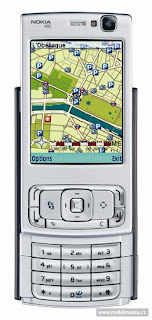
Nokia N95


Ever since the Nokia N95 first debuted back in September 2006, it's been one of the most anticipated and highly coveted smart phones. In fact, Nokia didn't even have plans to bring the N95 to the United States, but after the high number of requests from U.S. customers, the company finally decided to ship the hot smart phone across the pond. What's all the hubbub about, you ask? Well, let's see: it boasts a 5-megapixel camera that can also record VGA-quality video, a robust media player with a 3.5mm headphone jack, a dual-slider design, and integrated GPS, Wi-Fi, and Bluetooth. Not to mention, it's a Symbian smart phone as well.

Unfortunately, when you've got an overhyped phone like this, there's bound to be some disappointments. First, the N95 does not work on the United States' 3G network (namely, Cingular/AT&T's HSDPA network) for high-speed Web browsing and data transfer, which is a major disappointment. Also, all of the phone's features take a toll on the device's battery and processor, as standby battery life was pretty sad and performance was somewhat sluggish. But do the pros outweigh the cons? Is it worth paying the $750 for the phone? Well, we're not 100 percent sold. We so desperately wanted to like this phone, but for that money, we want a device that can keep up with our demands and not require us to go running to the outlet to constantly recharge. Plus, we'd also like the see the inclusion of 3G. Still, we know there are the gadget lovers and tech enthusiasts out there that will plunk down the Benjamins for this high-end phone, and we can't deny that you'll get your fill of features. The Nokia N95 is available now unlocked through Nokia's flagship stores, select wireless retailers, and online.

Design
Considering all the features that are packed into the Nokia N95, you'd think it would be a pretty hefty phone, but not so, my friends. The N95 measures a compact 3.8 inches long by 2.1 inches wide by 0.8 inch thick and weighs only 4.2 ounces. It feels comfortable to hold, and the soft-touch finish on the back of the device makes it easier to grip. That said, we couldn't help but think that the phone felt, well, kind of cheap. In particular, the front cover felt plasticky and rickety (more on this below). From an aesthetic standpoint, the N95 certainly falls more into the short and stocky category rather than svelte and sexy, but I think it's still a good-looking phone with its plum-and-silver color scheme.

Of course, another attraction of the N95 is its innovative two-way slider design. Not only can you slide the front cover up to reveal the alphanumeric keypad, you can also slide it down to expose the media player controls. The dual functionality is nice, but we had a couple of concerns. First, the cover, which houses the screen and navigation buttons, felt loose and rattled around a bit. It just didn't feel like it was securely locked into place, thus leading to our next complaint. When putting the phone into a pants pocket or even when thrown into a bag, it was too easy to slide open the phone. There is a keypad lock, but we would prefer that the N95 just had a stronger mechanism for locking the position of the front flap.

Moving onto the display, the Nokia N95 features a gorgeous 2.6-inch QVGA TFT screen with a 16 million-color output and 320x240 pixel resolution. Be aware, however, that it isn't a touch screen. Images and text looked great, with deep color saturation and sharp definition. You can change the theme of the home screen, backlighting time, and font size. There's also an ambient light detector to adjust the backlighting depending on your environment, which helped keep the display readable in various lighting conditions. However, we noticed the N95's screen had a nasty habit of holding fingerprints and smudges, so keep some kind of wipe cloth close by. We should also note that when you slide open the phone to access the media player controls, the screen automatically switches to Landscape mode but once you close the phone, it doesn't automatically switch back. You have to open the dial pad to get back to portrait mode, which is annoying.

Beneath the display are the N95's navigation controls, which consist of two soft keys, the Talk and End buttons, shortcuts to the main menu and the multimedia menu, a Clear key, an Edit key that lets you choose the text input type, and a four-way toggle with a center select button. For the most part, the controls are easy to use, though they're a bit slick and the toggle and outer ring of buttons (see image above) could have been bigger. Still, it's an improvement over the Nokia E65's miniscule keys. The N95's numeric keypad features large, tactile buttons with bright backlighting, and they're raised above the phone's surface so it's easier to dial by feel. Unfortunately, the media player controls are less tactile and require a bit more pressure to register the command.

Since the N95 is a multimedia-centric device, Nokia smartly equipped the phone with a 3.5mm headset jack so you can plug in your favorite pair of earbuds or headphones for a better listening experience. It's located on the left side, in addition to an infrared port and the microSD expansion slot. On the right side, you will find the volume rocker, a shortcut to your photo gallery, and the camera activation button. The latter is in a position so that when you're holding the phone horizontally, it actually mimics the look and feel of a digital camera. The N95's camera lens itself (and flash) is located on the back and is guarded by a protective cover. Finally, there's a power connector and mini USB port on the bottom, and the power button on top of the handset.

Features
It's hard to decide where to begin with the feature-packed Nokia N95, but since imaging is one of its biggest draws, we'll start there. The N95 is equipped with an impressive 5-megapixel camera--unheard of in the cell phone and smart phone world--with a Carl Zeiss Vario-Tessar lens. (Carl Zeiss was an optician who first started manufacturing lenses for microscopes and then used his expertise for camera lenses.) The breadth of customization and editing options available on this phone is astounding--almost like an actual digital camera. You can choose from seven shooting modes, ranging from close-up to sports to night portrait, and five quality settings. You can adjust the brightness, contrast, white balance, color tone, ISO light sensitivity, and exposure value to get the best picture possible. The flash even has a red-eye reduction option. Plus, there's also a self-timer and a sequence mode for multiple shots.

The N95 can record video at a maximum VGA resolution (640x480) at 30 frames per second, though you also have a choice of four other quality settings. The N95 can record video with sound in MP4 or 3GP (for multimedia messages) format, and length is only limited by the available memory. There's a handy timer that shows you how much video time you have based on the memory and the quality setting (this feature is available in camera mode as well). Editing options are a little more limited in video mode; you only get two shooting modes (automatic and night) and white balance and color tone settings. In addition, there's a video stabilization feature to help reduce camera shake as you're recording video.

We were impressed by the quality of photos and videos the N95 produced, as one would hope with a 5-megapixel lens. Pictures boasted vibrant colors and sharp lines and edges, and unlike some smart phones, the N95 didn't require you to have a super steady hand to get a clear shot. The camera phone also did a decent job with nighttime pictures, though they were still pretty dim. Video quality was also good. There wasn't any of that graininess that sometimes plagues videos shot by camera phones. We also wanted to mention the camera's interface, as we found it extremely easy to use and change camera settings, which can sometimes be challenging when you don't have a touch screen.

Once you're done, you can touch up your videos and photos with the included image editors. For example, you can add clip art and reduce red eye on still images, or cut audio for videos. There's about 150MB of internal memory for saving your photos and videos to the phone, but we recommend saving them onto a microSD card, especially since the N95 can support up to 2GB expandable media. And sharing your memories is also easy with the ability to view them as a slide show, print them via Nokia's Xpress Solutions, upload them to the Web or Nokia's Lifeblog app, or transfer them to other devices. Also, Nokia includes video-out cables so you can hook up your N95 to your TV to view all your media on the big screen.

As a multimedia computer, the Nokia N95 isn't limited to just pictures and video. There's also an integrated music player that supports MP3, WMA, W4A, AAC, AAC+, and eAAC+ files, as well as OMA DRM 2.0- and WMDRM-protected songs. The music library categorizes tracks by artists, albums, genres, and composers; you can also create playlists right on the phone and adjust the sound with the built-in equalizer. The N95 also has an FM radio, though you'll have to use the included headset to access the radio, since it acts as the tuner. RealPlayer is also onboard with 3GPP and MPEG-4 video streaming support. Again, we applaud the decision to incorporate a 3.5mm headphone jack, which goes a long way in making the multimedia experience that much better.

On top of all that, Nokia has also packed a GPS receiver into the N95, along with a mapping application. With it, you can get color maps, route planning, and a healthy points-of- interest database. There's also a trip computer that shows you information about the total distance, time, average speed, and so forth. However, to get any kind of turn-by-turn directions, you'll have to download an upgrade to the device that costs an additional $91.93 for a one-year license or $11.81 for a month. The N95's GPS performance was satisfactory, although it took quite a while for the unit to get a satellite fix. Once connected though, it did a good job of tracking our position and gave accurate route calculations.

Aside from the GPS radio, other wireless options on the Nokia N95 include integrated Bluetooth 2.0, Wi-Fi, and an infrared port. The smart phone supports a number of Bluetooth profiles, including wireless headsets, hands-free kits, wireless keyboards, and A2DP for Bluetooth stereo headsets. As far as Wi-Fi, the N95 is compatible with 802.11b/g standards; in addition, there's support for Universal Plug and Play, which lets you use a Wi-Fi connection to hook up with a compatible PC, printer, or home entertainment system, but the number of UPnP devices is limited at the moment. The N95 was able to find and connect to our test access point, and we were able to surf the Net within minutes, using Nokia's excellent Web browser. Now, here's the bad news: the N95 does not work on the U.S. 3G networks. There's support for Europe's HSDPA/WCDMA 2100 band, but not for the U.S. HSDPA bands, so we're left with just regular 'ol EDGE speeds. Granted, we've been a bit spoiled after getting a taste for 3G, but for such a high-end and advanced phone as the N95, 3G support would have been huge.

While all the aforementioned features are great, you can't forget that the Nokia N95 is, first and foremost, a phone. The N95 includes a speakerphone, speed dial, conference calling, voice-command support, a vibrate mode, and text and multimedia messaging. Unfortunately, the video calling feature found on the European version of the N95 is not supported here in the United States. The phone's address book is only limited by the available memory, and the SIM card holds an additional 250 contacts. There's room in each entry for multiple phone numbers, work and home addresses, e-mail addresses, birthday, and more vitals. For caller ID purposes, you can assign each contact a photo, one of 44 ringtones, or a group ID.

Last but not least, the N95 runs the third edition of the S60 platform on the Symbian operating system for your productivity needs. An app called QuickOffice lets you view Word, Excel, and PowerPoint documents, and it optimizes the pages for the phone's screen, so you don't have to scroll all over the place to read text. There are some nice shortcuts to jump to the top or bottom of the page to reduce the up-and-down scrolling, and there's also a search function. However, if you want any editing capabilities, you'll have to upgrade the preloaded copy of QuickOffice. For messaging, the N95 supports IMAP4, POP3, and SMTP e-mail accounts and comes with a full attachment viewer. The N95 does support a number of push e-mail solutions, as well as Microsoft Exchange Server synchronization, but this is dependent upon your service provider and company's e-mail solution, so check with your IT department if you have any questions.

There's a handy wizard when you first power up the device to help you configure your e-mail, and we used it to easily set up our SBC Global account. Other productivity apps and PIM tools include Adobe Reader, a Zip Manager, a calculator, a notepad, a measurement converter, a clock, and a voice recorder.

Key features
Two-way sliding construction
Dedicated music keys
Landscape screen mode
Stereo speakers
microSD memory card slot
UMTS, Wi-Fi, USB, stereo Bluetooth and Infrared support
miniUSB port
FM radio
5 megapixel camera with auto focus
Records video in VGA resolution
GPS receiver with free basic navigation
Symbian 9.2 OS with S60 3rd edition UI plus Feature Pack 1
Standard 3.5 mm audio jack
TV-out port

Main disadvantages
Poor battery life
Charging through USB is not possible
No FM RDS
Voice assisted GPS navigation is charged
GPS chip doesn’t work with third party applications
Cannot edit office documents

Specification

General
Network
HSDPA / GSM 850 / 900 / 1800 / 1900
Announced
2006, September
Status
Available

Size
Dimensions
99 x 53 x 21 mm, 90 cc
Weight
120 g

Display
Type
TFT, 16M colors
Size
240 x 320 pixels, 40 x 53 mm
Ringtones
Type
Polyphonic (64 channels), Monophonic, True Tones, MP3
Customization
Download
Vibration
Yes

Memory
Phonebook
Practically unlimited entries and fields, Photocall
Call records
Detailed, max 30 days
Card slot
microSD (up to 2GB), hot swap, 128 MB card included
- 160 MB internal memory

Data
GPRS
Class 10 (4+1/3+2 slots), 32 - 48 kbps
HSCSD
Yes
EDGE
Class 32, 296 kbps; DTM Class 11, 177 kbps
3G
HSDPA
WLAN
Wi-Fi 802.11 b/g, UPnP technology
Bluetooth
Yes, v2.0 with A2DP
Infrared port
Yes
USB
Yes, v2.0 miniUSB

Features
OS
Symbian OS 9.2, S60 rel. 3.1
Messaging
SMS, MMS, Email, Instant Messaging
Browser
WAP 2.0/xHTML, HTML
Games
Downloadable
Colors
Silver
Camera
5 MP, 2592 x 1944 pixels, Carl Zeiss optics, autofocus, video(VGA 30fps), flash; secondary CIF videocall camera

- Built-in GPS navigation- Installed Maps application covering over 100 countries- Dual slide design- Java MIDP 2.0- MP3/AAC/AAC+/eAAC+/WMA player- 3.5 mm audio output jack- TV out- Stereo FM Radio- Organiser- Office document viewer- T9- Push to talk - Voice dial/memo- Built-in handsfree

Battery
Standard battery, Li-Ion 950 mAh (BL-5F)
Stand-by
Up to 220 h
Talk time
Up to 6 h 30 min

Monday, August 20, 2007

Mobile Stalking


Whether you're single or married, anyone with enough determination can easily track your digital footprints. Most of us see technology as a way to connect to the rest of the world, but technology in the wrong hands can be fatal. An article on the Red Tape Chronicles got me thinking about all the gear high-tech stalkers actually use to locate their victims. One woman interviewed for the article says her husband's jealousy was so out of control, he turned to spyware and GPS locators to track her every move. That's how he found out she visited her college web site one day, and was beaten all weekend long because he thought she was trying to reconnect with a former flame. Unfortunately, the abuse didn't stop there. Later she found out he used to searched her call history, email friends pretending to be her, and even sent her mom an e-card laced with spyware after the couple divorced.

Cindy Southworth, technology director at the National Network to End Domestic Violence, says "there's nothing new about abusive spouses using technology to terrorize. What is new is that now nearly all abusers use high-tech spying tools to try to extend their domination." That's a scary thought, and one reason to take action if you think your lover is spying on you. The National Network to End Domestic Violence recommends updating your antivirus software regularly to detect any spyware. If you're thinking about leaving, don't use your home computer to research your options, use a friend's computer instead. Be careful out there, and remember that email and instant messaging tools are not private enough. If your spouse is monitoring your every move, he/she probably has the password to all your personal accounts.

Saturday, August 18, 2007

Cleaning up your PC is no joke

We computer pundits write about cleaning up your hard drive all the time, but less frequently do we cover how to keep your computer equipment clean... from dust, spilled drinks, and other gunk. Not only is it kind of nasty to type on a keyboard that's stained with Jolt Cola droplets, but having a computer case filled with dust bunnies can shorten the lifespan of your machine by restricting airflow and causing your machine to overheat.
The good news: Getting your PC clean is a relatively simple affair that anyone can perform in just a few minutes. Here's a quick step-by-step guide.

Start with a dusting:
Compressed air is your friend. Dust-Off is a fine brand, but really they are all the same as long as you get the "greenhouse gas" friendly canisters. A large can should last you for years. Open up your PC's case and take it outside if there's an excessive amount of dust. Give it a few quick blasts from the can with the goal of getting all the dust bunnies out of the box. Extended spraying is a no-no, as the air that comes out is quite cold and can cause condensation to build up on electronic parts if you hold down the spray button for too long. Use the nozzle straw attachment to get to hard-to-reach places like under the motherboard.

Dust some more:
Now turn your attention to the rest of the computer. Particularly, dust out the fans and intake grilles, including the power supply. If you have a notebook computer, this is especially important, as those fans do a lot of work and are especially prone to clogging. Flip your notebook over (turned off!) and blast it clean.

Clean your keyboard:
While you have the duster handy, use the straw attachment to clean out your keyboard. You could use a mini-vacuum, but they're more trouble than they're worth. A few quick sprays will send crumbs a-flying. Next you'll want to clean off the surface of the keyboard. Most are pretty tough, so you can use a regular household cleanser to do the job. Don't spray 409 directly on the keyboard, but lightly dampen a cleaning rag or paper towel with the stuff and wipe it down gently. You don't want liquid dripping between the keys. You can use a Q-Tip moistened with alcohol to clean anything that has dripped down between the keys. If you want to go crazy, here's how to clean your keyboard in the dishwasher.

Shine up your mouse:
You can use the same technique with your mouse, which you should clean on all sides. Mice pick up a lot of gunk on their undersides, so just scrape off anything that's accumulated there. If you still have a non-optical mouse that uses a ball (God help you!), open it up, clean off the ball with the damp towel, and use a Q-Tip to clean off the rollers inside. Alcohol works for rollers that are excessively dirty.

Turn your attention screenward:
Your LCD or CRT screen is probably disgustingly dirty. I've written specifically on how to clean LCD screens in this post, so just follow those instructions. The same technique works for CRTs, too. Lately I've been trying out something called Purosol Molecular Screen Cleaner, which works quite well on both laptops and TVs and even camera displays.

Miscellany:
Cell phones, PDAs, and peripherals can usually all be cleaned with a combination of the above advice: Use LCD cleaner on anything with a display and mild household cleaner on any plastic parts. Q-Tips do wonders for any nooks and crannies.

Cleaning LCD screens:
Old CRT-based TVs and computer monitors were tough. For the most part, you could spritz them with Windex and wipe them down when they got dirty. I never had a problem getting a TV clean.
But now the world has moved to LCD, plasma, and other flat-panel technologies. And with laptops especially, screens are very prone to getting filthy because people just can't keep their fingers off of them. But how do you clean an LCD? Here's what I do.

For starters: No Windex. While LCDs have glass inside them, they are coated with an optical film, and the chemicals in glass cleaner (namely ammonia) can damage that film. That film can also be easily scratched, so don't use paper towels or any dry cloth other than microfiber or other lint-free cloth either. Also, as with a TV, be sure to turn the device off before you try to clean it and until it is totally dry, as any liquid can cause a short.

Personally, I now use a commercial LCD screen cleaner (the kind that comes in a spray bottle and includes a special cloth) for all my LCD monitors, LCD TVs, and laptop screens. I've never had a problem (though I've read reports of people who've had discoloration due to these cleaners), and my screen always comes out sparkling. You can usually find them near checkout at any electronics or computer store, or get one online. That Belkin cleaner looks just perfect.

What I DO NOT recommend are the prepackaged wipes that are moistened with cleaning liquid. (You often get a second wipe for drying.) In my experience, these always leave residue on your display, and I don't trust the dry, paper wipes not to scratch the screen. After using them, I find the screen rarely looks much better than before I cleaned it. Since I switched to the spray-bottle products, I've been much happier with the results.
If you want to save some money, you can try mixing your own ammonia-free LCD cleaner. You could start with plain water, but use distilled water. I've also read that you can add a little white vinegar or vodka to the water to aid the cleaning, but I've never tried that personally.

On a related note, you might also notice that laptops get smudged and dirtied by keyboards, which can happen if the notebook is poorly designed such that the screen actually touches the keys when it is closed. To remedy this, I cut up an old t-shirt and place it over the keyboard when I close it. It also makes for handy dust rag for quick tidying up.

If you got any special tips for cleaning your LCD or plasma screen? Share them below!

Friday, August 17, 2007

Some Important Online Dating Rules

In case you're still wondering, yes, online dating is cool. I have been to so many weddings where the bride and groom met online that I have no doubt it's a great way to meet the love of your life. The old stigma of online dating is gone, but the practicalities of making it work still exist. Here are some common sense ideas to consider before you dive into the online dating pool.

1. Where to post your profile or look for potential dates
Go local
Unless you're looking for a long-distance relationship, try to limit your searches and postings to local sites. Search your city name plus ‘online dating' and you'll be amazed at the number of resources available.
Go with a common interest or hobby
You can search by interests on the big sites or search smaller sites that are only geared towards one hobby or passion. For example Fitness Singles has subcategories in everything from bowling to yoga. Religious dating sites like Baptist Friends or Jdate are great if religion is important in your life. Lifestyle dating like a vegetarian dating site, dating sites for smokers, and sites for different sexual orientations are available at almost all the big online dating services.

2. The Profile
You can be the greatest person on the planet, but if your profile or picture don't reflect who you are, you won't get a lot of potential dates.
Choose your screen name wisely
Know that your screen name says a lot about you, and will attract (or repel) Mr. or Ms. Right. SexyBaby1234 is going to get a certain type of response—it's the online equivalent of wearing too much makeup and too few clothes, attracting a man who's primarily interested in... well, not your mind. For guys, Insane49erfan reeks of an ESPN-obsessed facepainter who will propose to you during halftime. If you don't want to use a variation on your first name like jennie99, try something mild or meaningless like greenfire, bw4576, or turtle22.
Have a sense of humor in your profile
You don't need to come off like a stand-up comedian, but you should try to show that you've got a brain and don't take yourself too seriously.
Stay positive
Try not to express any bitterness about previous relationships. Keep your profiles positive and happy. Nobody will attracted to ‘downerguy' who just wants a girl who "won't burn him AGAIN."
Stick to the reality of who you are
It's humbling to sum yourself up in a few sentences, but if you can't be honest, it's only going to be harder for you down the line. Write your profile and ask a friend to read it who you think will be honest. If you are lying to yourself so badly that you don't even realize you are off-base, well this blog post won't help.

3. The Picture
Pick out a good picture where you look happy. Don't go all ‘Glamour Shots' with a stuffy posed studio picture or too artsy with the sepia tones or the diffused glow. Avoid the raging party shot that shows you downing a beer bong with a Jagermeister chaser. And, keep all your clothes on unless you want regulars from ‘Candy's Love Shack' emailing you about a deep and meaningful relationship. Need help picking a good shot? Ask a friend, or submit two photos to thefacegame.com so strangers can tell you which they like best.

4. Safety

Be wary of scams, and keep your personal information private
Avoid anyone asking for money, seeking too much personal information, or doing or saying anything that makes you feel weird. Trust your instincts, and if you have bad luck or bad instincts with dating (you know who you are), ask a friend what they think.
Meet in a public place on a first date
Don't have the date pick you up, stay sober, and tell a friend you'll call them after the date to let them know you're home safely.
Use a third party email address
Don't give out your main personal account and definitely not your business account.
Now, go forth, date online, and fall in love!

Now, go forth, date online, and fall in love!

Thursday, August 16, 2007

Scams


Scams and How to Avoid them

The Internet serves as an excellent tool for investors, allowing them to easily and inexpensively research investment opportunities. But the Internet is also an excellent tool for fraudsters. That's why you should always think twice before you invest your money in any opportunity you learn about through the Internet.


Where the Frauds Are

The Internet allows individuals or companies to communicate with a large audience without spending a lot of time, effort, or money. Anyone can reach tens of thousands of people by building an Internet web site, posting a message on an online bulletin board, entering a discussion in a live "chat" room, or sending mass e-mails. It's easy for fraudsters to make their messages look real and credible. But it's nearly impossible for investors to tell the difference between fact and fiction.


Online Investment Newsletters

Hundreds of online investment newsletters have appeared on the Internet in recent years. Many offer investors seemingly unbiased information free of charge about featured companies or recommending "stock picks of the month." While legitimate online newsletters can help investors gather valuable information, some online newsletters are tools for fraud.
Some companies pay the people who write online newsletters cash or securities to "tout" or recommend their stocks. While this isn't illegal, the federal securities laws require the newsletters to disclose who paid them, the amount, and the type of payment. But many fraudsters fail to do so. Instead, they'll lie about the payments they received, their independence, their so-called research, and their track records. Their newsletters masquerade as sources of unbiased information, when in fact they stand to profit handsomely if they convince investors to buy or sell particular stocks.
Some online newsletters falsely claim to independently research the stocks they profile. Others spread false information or promote worthless stocks. The most notorious sometimes "scalp" the stocks they hype, driving up the price of the stock with their baseless recommendations and then selling their own holdings at high prices and high profits.


Bulletin Boards

Online bulletin boards – whether newsgroups, usenet, or web-based bulletin boards – have become an increasingly popular forum for investors to share information. Bulletin boards typically feature "threads" made up of numerous messages on various investment opportunities.
While some messages may be true, many turn out to be bogus – or even scams. Fraudsters often pump up a company or pretend to reveal "inside" information about upcoming announcements, new products, or lucrative contracts.
Also, you never know for certain who you're dealing with – or whether they're credible – because many bulletin boards allow users to hide their identity behind multiple aliases. People claiming to be unbiased observers who've carefully researched the company may actually be company insiders, large shareholders, or paid promoters. A single person can easily create the illusion of widespread interest in a small, thinly-traded stock by posting a series of messages under various aliases.


E-mail Spams

Because "spam" – junk e-mail – is so cheap and easy to create, fraudsters increasingly use it to find investors for bogus investment schemes or to spread false information about a company. Spam allows the unscrupulous to target many more potential investors than cold calling or mass mailing. Using a bulk e-mail program, spammers can send personalized messages to thousands and even millions of Internet users at a time.


How to Use the Internet to Invest Wisely

If you want to invest wisely and steer clear of frauds, you must get the facts. Never, ever, make an investment based solely on what you read in an online newsletter or bulletin board posting, especially if the investment involves a small, thinly-traded company that isn't well known. And don't even think about investing on your own in small companies that don't file regular reports with the SEC, unless you are willing to investigate each company thoroughly and to check the truth of every statement about the company. For instance, you'll need to: get financial statements from the company and be able to analyze them; verify the claims about new product developments or lucrative contracts; call every supplier or customer of the company and ask if they really do business with the company; and check out the people running the company and find out if they've ever made money for investors before.


The "Pump And Dump" Scam

It's common to see messages posted online that urge readers to buy a stock quickly or tell you to sell before the price goes down. Often the writers will claim to have "inside" information about an impending development or to use an "infallible" combination of economic and stock market data to pick stocks. In reality, they may be insiders or paid promoters who stand to gain by selling their shares after the stock price is pumped up by gullible investors. Once these fraudsters sell their shares and stop hyping the stock, the price typically falls and investors lose their money. Fraudsters frequently use this ploy with small, thinly-traded companies because it's easier to manipulate a stock when there's little or no information available about the company.


The Pyramid
Be wary of messages that read: "How To Make Big Money From Your Home Computer!!!" One online promoter claimed that investors could "turn $5 into $60,000 in just three to six weeks." In reality, this program was nothing more than an electronic version of the classic "pyramid" scheme in which participants attempt to make money solely by recruiting new participants into the program.


The "Risk-Free" Fraud
"Exciting, Low-Risk Investment Opportunities" to participate in exotic-sounding investments – such as wireless cable projects, prime bank securities, and eel farms – have been offered through the Internet. But no investment is risk-free. And sometimes the investment products touted do not even exist – they're merely scams. Be wary of opportunities that promise spectacular profits or "guaranteed" returns. If the deal sounds too good to be true, then it probably is.


Wednesday, August 15, 2007

GPS


What is GPS?
The Global Positioning System (GPS) is a satellite-based navigation system made up of a network of 24 satellites placed into orbit by the U.S. Department of Defense. GPS was originally intended for military applications, but in the 1980s, the government made the system available for civilian use. GPS works in any weather conditions, anywhere in the world, 24 hours a day. There are no subscription fees or setup charges to use GPS.

How it works
GPS satellites circle the earth twice a day in a very precise orbit and transmit signal information to earth. GPS receivers take this information and use triangulation to calculate the user's exact location. Essentially, the GPS receiver compares the time a signal was transmitted by a satellite with the time it was received. The time difference tells the GPS receiver how far away the satellite is. Now, with distance measurements from a few more satellites, the receiver can determine the user's position and display it on the unit's electronic map.

A GPS receiver must be locked on to the signal of at least three satellites to calculate a 2D position (latitude and longitude) and track movement. With four or more satellites in view, the receiver can determine the user's 3D position (latitude, longitude and altitude). Once the user's position has been determined, the GPS unit can calculate other information, such as speed, bearing, track, trip distance, distance to destination, sunrise and sunset time and more.

How accurate is GPS?
Today's GPS receivers are extremely accurate, thanks to their parallel multi-channel design. Garmin's 12 parallel channel receivers are quick to lock onto satellites when first turned on and they maintain strong locks, even in dense foliage or urban settings with tall buildings. Certain atmospheric factors and other sources of error can affect the accuracy of GPS receivers. Mostly, GPS receivers are accurate to within 15 meters on average.

Newer GPS receivers with WAAS (Wide Area Augmentation System) capability can improve accuracy to less than three meters on average. No additional equipment or fees are required to take advantage of WAAS. Users can also get better accuracy with Differential GPS (DGPS), which corrects GPS signals to within an average of three to five meters. The U.S. Coast Guard operates the most common DGPS correction service. This system consists of a network of towers that receive GPS signals and transmit a corrected signal by beacon transmitters. In order to get the corrected signal, users must have a differential beacon receiver and beacon antenna in addition to their GPS.

The GPS satellite system
The 24 satellites that make up the GPS space segment are orbiting the earth about 12,000 miles above us. They are constantly moving, making two complete orbits in less than 24 hours. These satellites are travelling at speeds of roughly 7,000 miles an hour.
GPS satellites are powered by solar energy. They have backup batteries onboard to keep them running in the event of a solar eclipse, when there's no solar power. Small rocket boosters on each satellite keep them flying in the correct path.
Here are some other interesting facts about the GPS satellites (also called NAVSTAR, the official U.S. Department of Defense name for GPS):

* The first GPS satellite was launched in 1978.
* A full constellation of 24 satellites was achieved in 1994.
* Each satellite is built to last about 10 years. Replacements are constantly being built and launched into orbit.
* A GPS satellite weighs approximately 2,000 pounds and is about 17 feet across with the solar panels extended.
* Transmitter power is only 50 watts or less.

What's the Signal?
GPS satellites transmit two low power radio signals, designated L1 and L2. Civilian GPS uses the L1 frequency of 1575.42 MHz in the UHF band. The signals travel by line of sight, meaning they will pass through clouds, glass and plastic but will not go through most solid objects such as buildings and mountains.
A GPS signal contains three different bits of information — a pseudorandom code, ephemeris data and almanac data. The pseudorandom code is simply an I.D. code that identifies which satellite is transmitting information. You can view this number on your Garmin GPS unit's satellite page, as it identifies which satellites it's receiving.
Ephemeris data tells the GPS receiver where each GPS satellite should be at any time throughout the day. Each satellite transmits ephemeris data showing the orbital information for that satellite and for every other satellite in the system.
Almanac data, which is constantly transmitted by each satellite, contains important information about the status of the satellite (healthy or unhealthy), current date and time. This part of the signal is essential for determining a position.

Sources of GPS signal errors
Factors that can degrade the GPS signal and thus affect accuracy include the following:

* Ionosphere and troposphere delays — The satellite signal slows as it passes through the atmosphere. The GPS system uses a built-in model that calculates an average amount of delay to partially correct for this type of error.
* Signal multipath — This occurs when the GPS signal is reflected off objects such as tall buildings or large rock surfaces before it reaches the receiver. This increases the travel time of the signal, thereby causing errors.
* Receiver clock errors — A receiver's built-in clock is not as accurate as the atomic clocks onboard the GPS satellites. Therefore, it may have very slight timing errors.
* Orbital errors — Also known as ephemeris errors, these are inaccuracies of the satellite's reported location.
* Number of satellites visible — The more satellites a GPS receiver can "see," the better the accuracy. Buildings, terrain, electronic interference, or sometimes even dense foliage can block signal reception, causing position errors or possibly no position reading at all. GPS units typically will not work indoors, underwater or underground.
* Satellite geometry/shading — This refers to the relative position of the satellites at any given time. Ideal satellite geometry exists when the satellites are located at wide angles relative to each other. Poor geometry results when the satellites are located in a line or in a tight grouping.

Who uses GPS?
Who uses GPS? GPS has a variety of applications on land, at sea and in the air. Basically, GPS is usable everywhere except where it's impossible to receive the signal such as inside most buildings, in caves and other subterranean locations, and underwater. The most common airborne applications are for navigation by general aviation and commercial aircraft. At sea, GPS is also typically used for navigation by recreational boaters, commercial fishermen, and professional mariners. Land-based applications are more diverse. The scientific community uses GPS for its precision timing capability and position information.

Surveyors use GPS for an increasing portion of their work. GPS offers cost savings by drastically reducing setup time at the survey site and providing incredible accuracy. Basic survey units, costing thousands of dollars, can offer accuracies down to one meter. More expensive systems are available that can provide accuracies to within a centimeter.
Recreational uses of GPS are almost as varied as the number of recreational sports available. GPS is popular among hikers, hunters, snowmobilers, mountain bikers, and cross-country skiers, just to name a few. Anyone who needs to keep track of where he or she is, to find his or her way to a specified location, or know what direction and how fast he or she is going can utilize the benefits of the global positioning system.

GPS is now commonplace in automobiles as well. Some basic systems are in place and provide emergency roadside assistance at the push of a button (by transmitting your current position to a dispatch center). More sophisticated systems that show your position on a street map are also available. Currently these systems allow a driver to keep track of where he or she is and suggest the best route to follow to reach a designated location.